
Install Stem POS that sells offline
Stem POS turns an Android phone or any Windows machine into a full point of sale: offline selling, thermal receipts, barcode scanning, held orders and drawer accounting. It updates itself, so you install it once.
On this phone or tablet
- 1Download the app
- 2Open it · allow installs if asked
- 3Sign in with your store email
Published 7 September 2026 · Windows 10/11 (64-bit) · Complete installer, so everything Stem POS needs is inside, no other downloads required. Installs without administrator rights.
SHA-256
Invoicing only? Stem Invoicing 1.1.5 for Android · 45 MB
Exactly what you'll see, screen by screen
These are real screenshots of the actual install, so there are no surprises between this page and your counter.
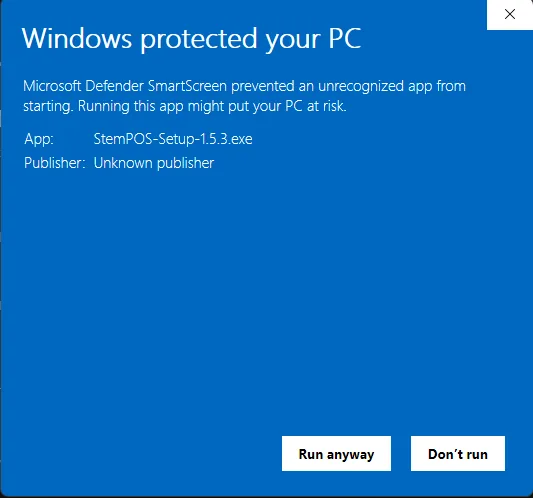
Run the installer
Double-click the downloaded StemPOS-Setup exe. Windows SmartScreen may show "Windows protected your PC". That happens because our installer is not yet signed by a certificate authority, not because anything is wrong. Click "More info", then "Run anyway". If you want certainty first, compare the SHA-256 checksum above against the downloaded file.
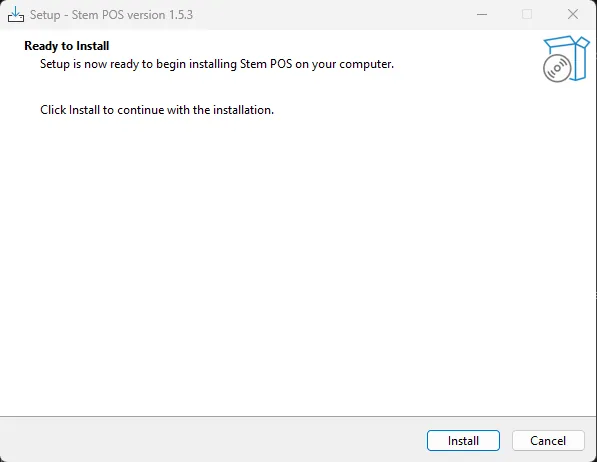
Click Install, and that is the whole setup
There are no choices to make and nothing to configure. Stem POS installs per-user, so it never asks for an administrator password and it works on a shop laptop where you do not have admin rights.
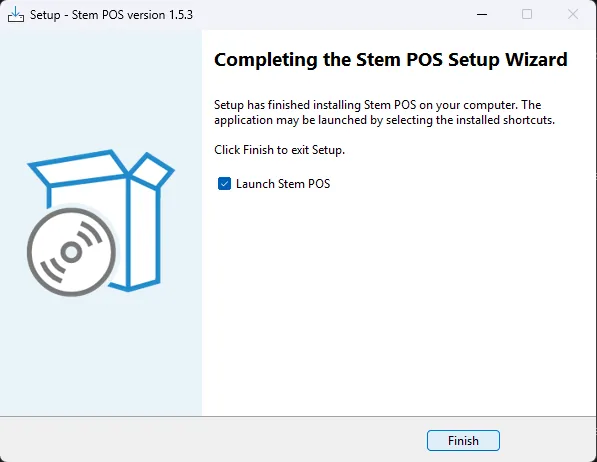
Finish, and Stem POS is on your desktop
Leave "Launch Stem POS" ticked and it opens the moment you click Finish. You get a desktop shortcut and a Start-menu entry, and from now on Stem POS keeps itself up to date with silent automatic updates, so you will never run an installer again.
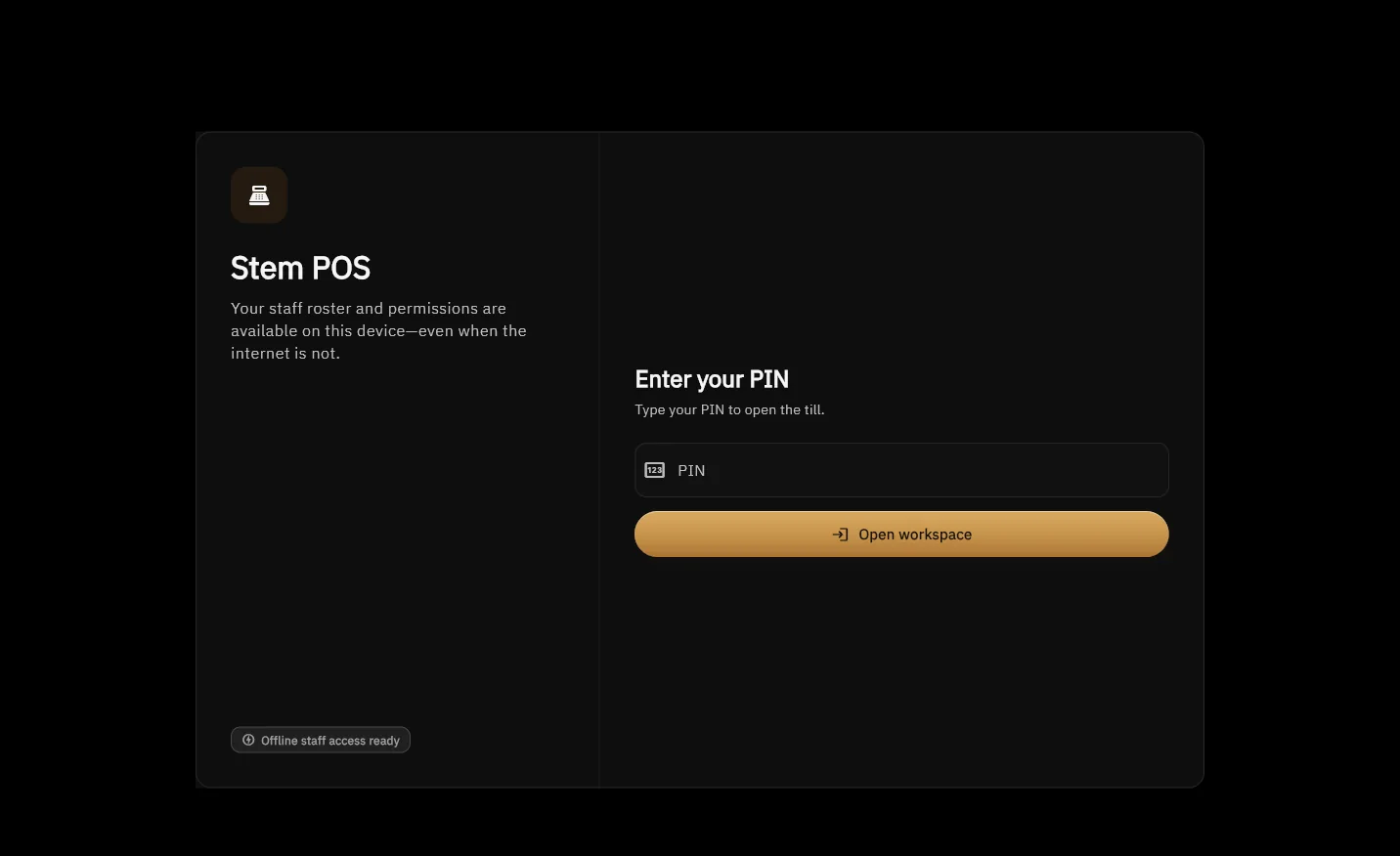
Sign in and sell
This is Stem POS itself: staff open it with a PIN, without a username or an internet connection. It downloads your catalogue on first sign-in and is ready to take its first sale; from that moment it keeps selling with no connection at all. Thermal printers, barcode scanners and cash drawers connect from Settings → Hardware.
Will Stem run on a Mac, an Android tablet or an iPad?
Today, through the browser, yes. Stem POS for web runs on macOS, Android tablets and iPad with nothing to install: same store, same catalogue, same reports as Stem POS for Windows.
As a native offline app: Windows and Android. Stem POS for Android 1.8.1 installs on any Android phone or tablet and sells offline like the Windows till. There is no macOS or iPad build yet, and we are not going to pretend otherwise.
The practical answer for most shops: run Stem POS for Windows on the counter where the printer and drawer are, and use Stem POS for web on whatever else you own. Progress is posted on the changelog.
Just want to try it first?
Stem POS for web runs in any browser with nothing to install: same products, same receipts, same reports. Install Stem POS for Windows when you want full offline selling at the counter.
Download and install questions
›What are the system requirements for Stem POS?
A Windows 10 or 11 PC (64-bit). The installer is complete, so a clean machine needs no other downloads, and it installs without administrator rights. A thermal receipt printer, barcode scanner and cash drawer are optional and use standard USB or network connections.
›Does Stem POS for Windows work without internet?
Yes. That is the point of it. After the first sign-in, Stem POS keeps a full copy of your shop on the machine (catalogue, prices, customers and credit balances) so selling, receipts, scanning and repayments run at full speed with no connection. Everything syncs when the internet returns, and each sale is booked on the day it really happened.
›Why does Windows warn me about this installer?
Because the installer is not code-signed with a commercial certificate yet, Windows SmartScreen shows a “Windows protected your PC” notice the first time. Choose More info, then Run anyway. You can verify you have the genuine file by checking its SHA-256 against the checksum published on this page before you run it.
›Do I have to pay to install Stem POS?
No. The download is free and the free plan covers one user with no expiring trial, so you can install it and sell on your real stock before paying anything. Paid plans start at USh 20,000 a month, billed by MTN or Airtel mobile money.
›How does Stem POS get updates?
It updates itself. Stem POS checks for a new version shortly after launch and installs it in the background, so you install once and the counter stays current without anyone downloading anything again.
Installed, and your stock is still in a book? How to move your shop from a paper notebook to a POS covers the count, the import and what to do about existing credit.